

The default notebook sandbox environment includes the W&B Python SDK, Reports and Workspaces API, marimo, and other commonly used packages.
Install a package
Install Python packages using either the sidebar or the terminal.- Terminal
View installed packages
View installed packages using either the sidebar or the terminal.- Terminal
To view installed packages: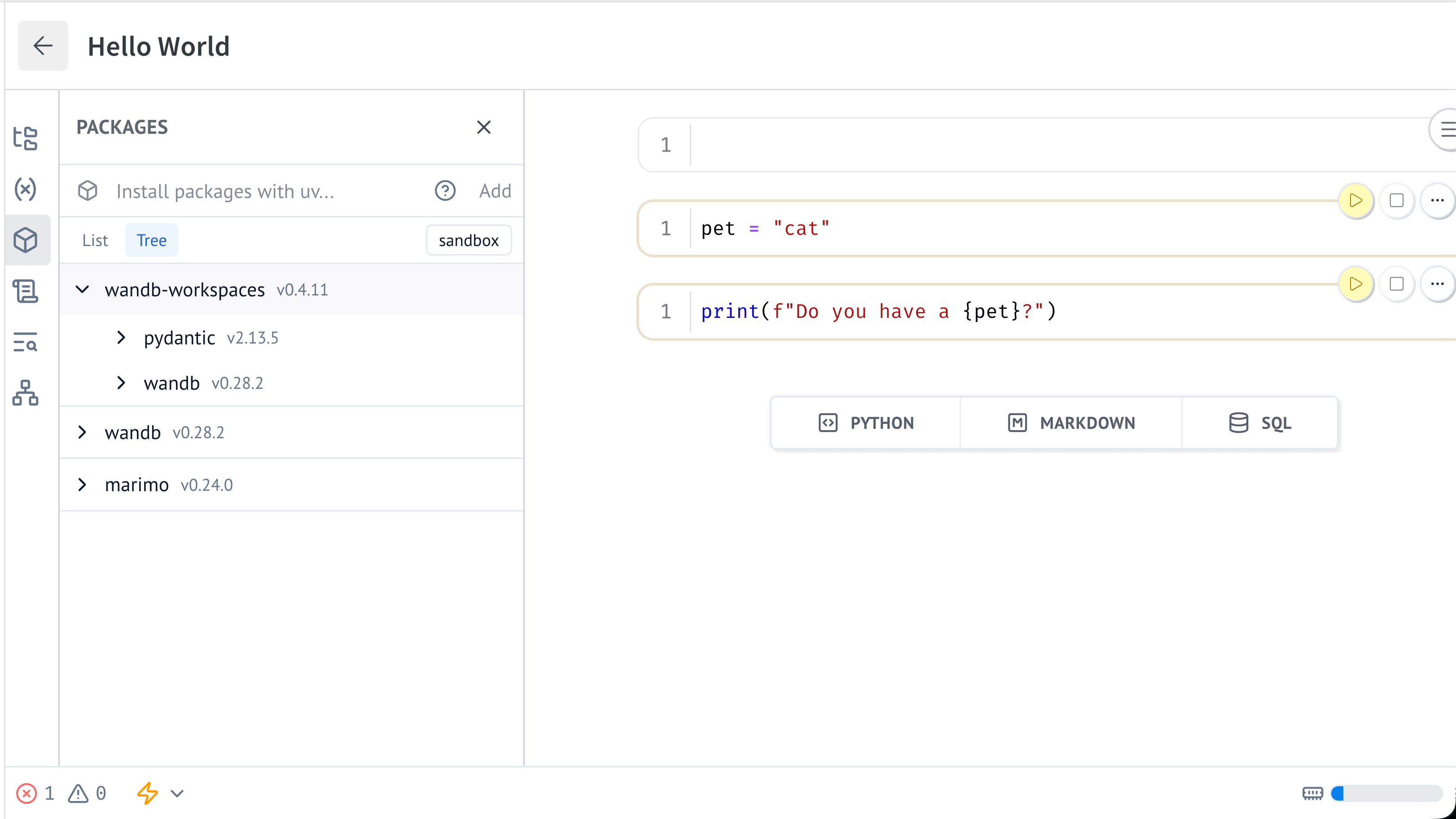
- In the notebook sidebar, select Manage packages.
- Select one of the following views:
- List: Displays a flat list of installed packages.
- Tree: Displays the package dependency hierarchy. Each dependency appears as a child of the package that requires it.
wandb-workspaces in the Manage packages sidebar. Packages nested under it are the dependencies of wandb-workspaces.Update a package
Update a package using either the sidebar or the terminal.- Terminal
Remove a package
Remove a package using either the sidebar or with the notebook terminal.- Terminal