> ## Documentation Index
> Fetch the complete documentation index at: https://wb-21fd5541-remote-scorers-ag.mintlify.site/llms.txt
> Use this file to discover all available pages before exploring further.
# Manage packages
Install, view, update, or remove Python packages from the **Manage packages** sidebar or the notebook terminal.
The default notebook sandbox environment includes the [W\&B Python SDK](/models/ref/python), [Reports and Workspaces API](/models/ref/wandb_workspaces/reports), [marimo](https://docs.marimo.io/), and other commonly used packages.
## Install a package
Install Python packages using either the sidebar or the terminal.
To install a package from the sidebar:
1. From the notebook sidebar, select **Manage packages** ().
2. Enter the package name.
3. Select **Add**.
Open the developer panel, then select the **Terminal** tab. Run the following command:
```bash theme={null}
uv pip install
```
Refer to the [marimo documentation](https://docs.marimo.io/guides/package_management/).
## View installed packages
View installed packages using either the sidebar or the terminal.
To view installed packages:
1. In the notebook sidebar, select **Manage packages**.
2. Select one of the following views:
* **List**: Displays a flat list of installed packages.
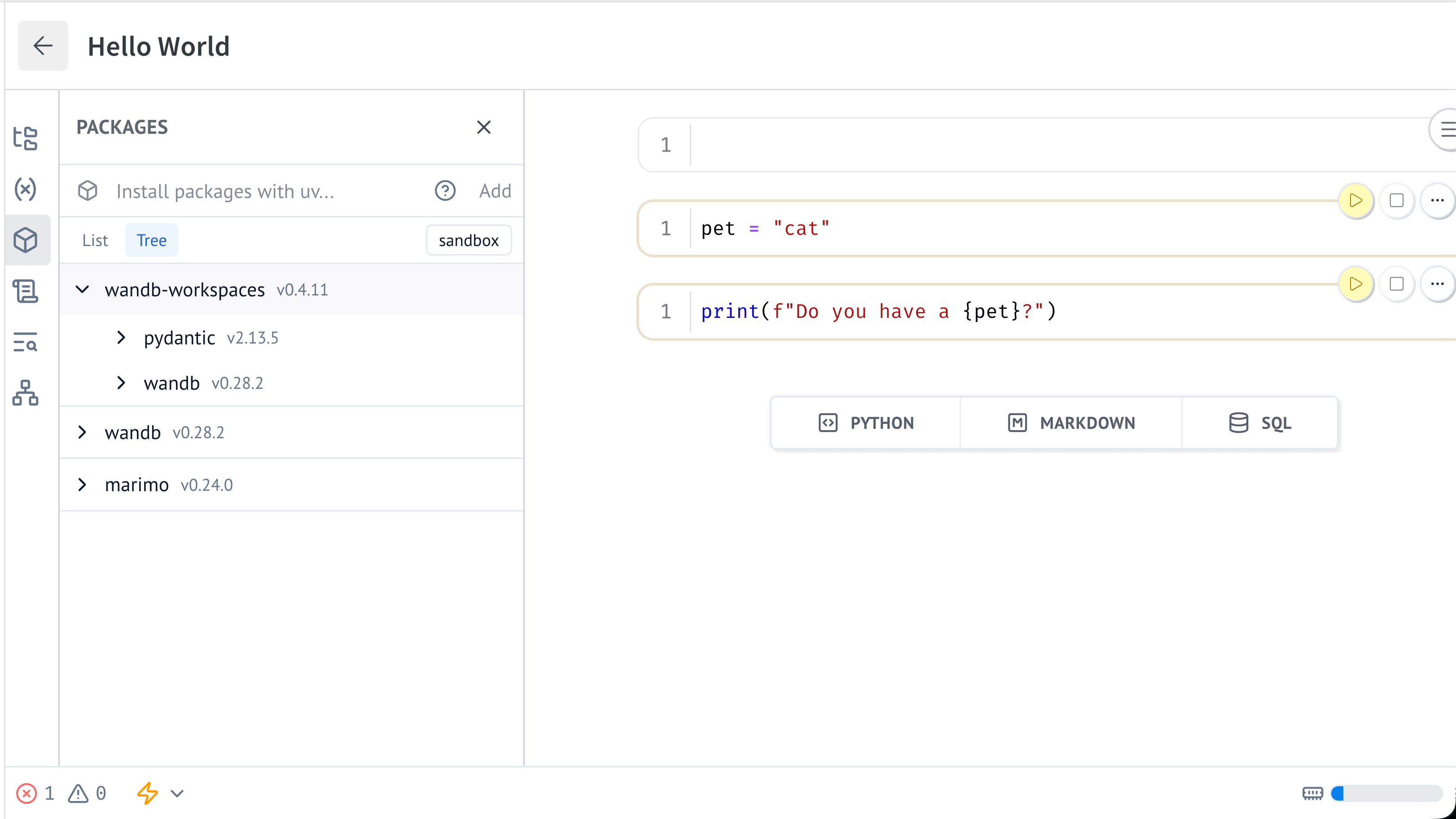
* **Tree**: Displays the package dependency hierarchy. Each dependency appears as a child of the package that requires it.
The following image shows `wandb-workspaces` in the **Manage packages** sidebar. Packages nested under it are the dependencies of `wandb-workspaces`.
 Open the developer panel, then select the **Terminal** tab. Run the following command:
```bash theme={null}
uv pip list
```
## Update a package
Update a package using either the sidebar or the terminal.
1. Select **Manage packages** () from the notebook sidebar.
2. Type or search for the package.
3. Select **Upgrade**.
Open the developer panel, then select the **Terminal** tab. Run the following command:
```bash theme={null}
uv pip install --upgrade
```
## Remove a package
Remove a package using either the sidebar or with the notebook terminal.
1. Select **Manage packages** () from the notebook sidebar.
2. Find the package you want to remove.
3. Select **Remove** next to the package name.
Open the developer panel, then select the **Terminal** tab. Run the following command:
```bash theme={null}
uv pip uninstall
```
Open the developer panel, then select the **Terminal** tab. Run the following command:
```bash theme={null}
uv pip list
```
## Update a package
Update a package using either the sidebar or the terminal.
1. Select **Manage packages** () from the notebook sidebar.
2. Type or search for the package.
3. Select **Upgrade**.
Open the developer panel, then select the **Terminal** tab. Run the following command:
```bash theme={null}
uv pip install --upgrade
```
## Remove a package
Remove a package using either the sidebar or with the notebook terminal.
1. Select **Manage packages** () from the notebook sidebar.
2. Find the package you want to remove.
3. Select **Remove** next to the package name.
Open the developer panel, then select the **Terminal** tab. Run the following command:
```bash theme={null}
uv pip uninstall
```